Change a project or workspace owner
In Ory Network, managing project ownership is sometimes required. Projects are typically part of a workspace, where you can easily assign multiple owners. However, legacy projects that predate the workspace system might require a few extra steps. Follow the appropriate instructions below based on your project's status.
The project is part of a workspace
For most projects, which are already within a workspace, transferring ownership is simple.
-
Adding a new owner:
-
Select the workspace or project.
-
Navigate to the "Workspace settings".
-
Select the "Members" section.
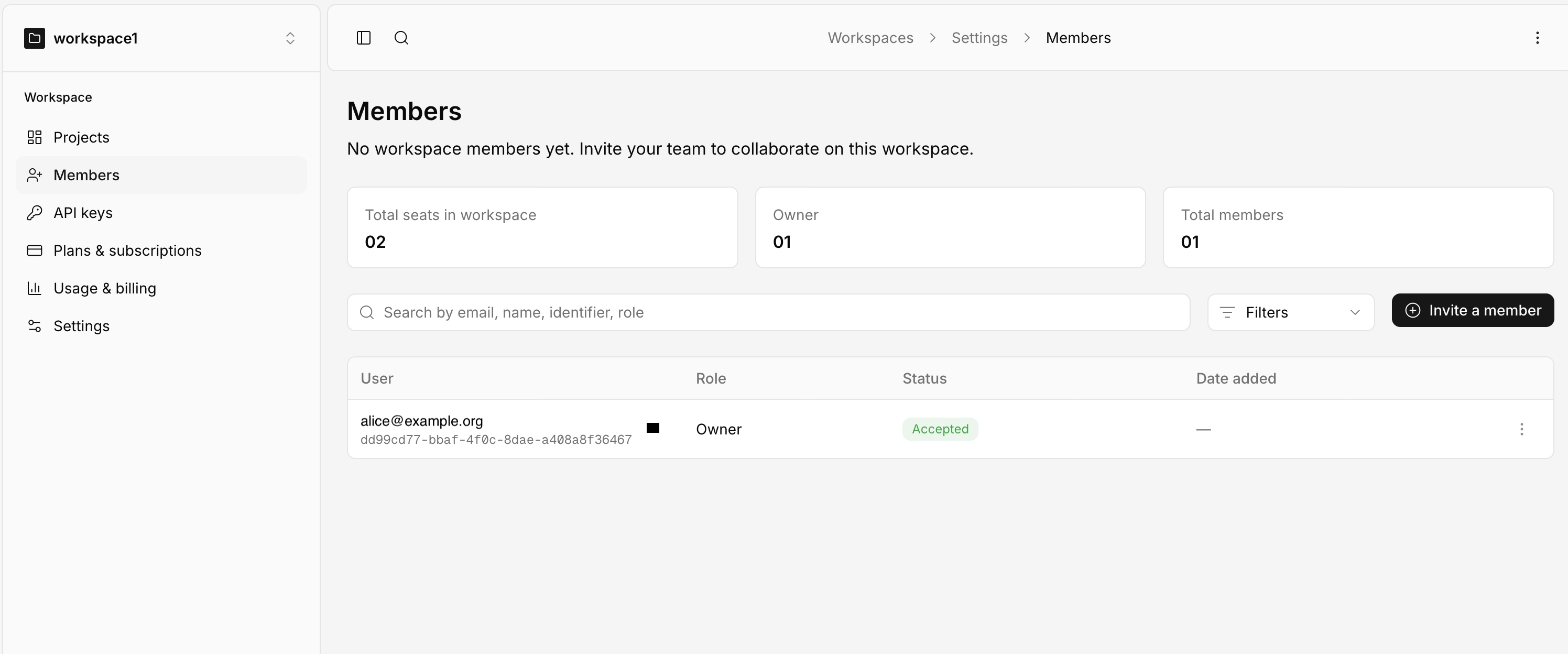
-
Select the "Members" section. Here, you can add the new owner (e.g.,
[email protected]). This allows both of you to manage the project seamlessly.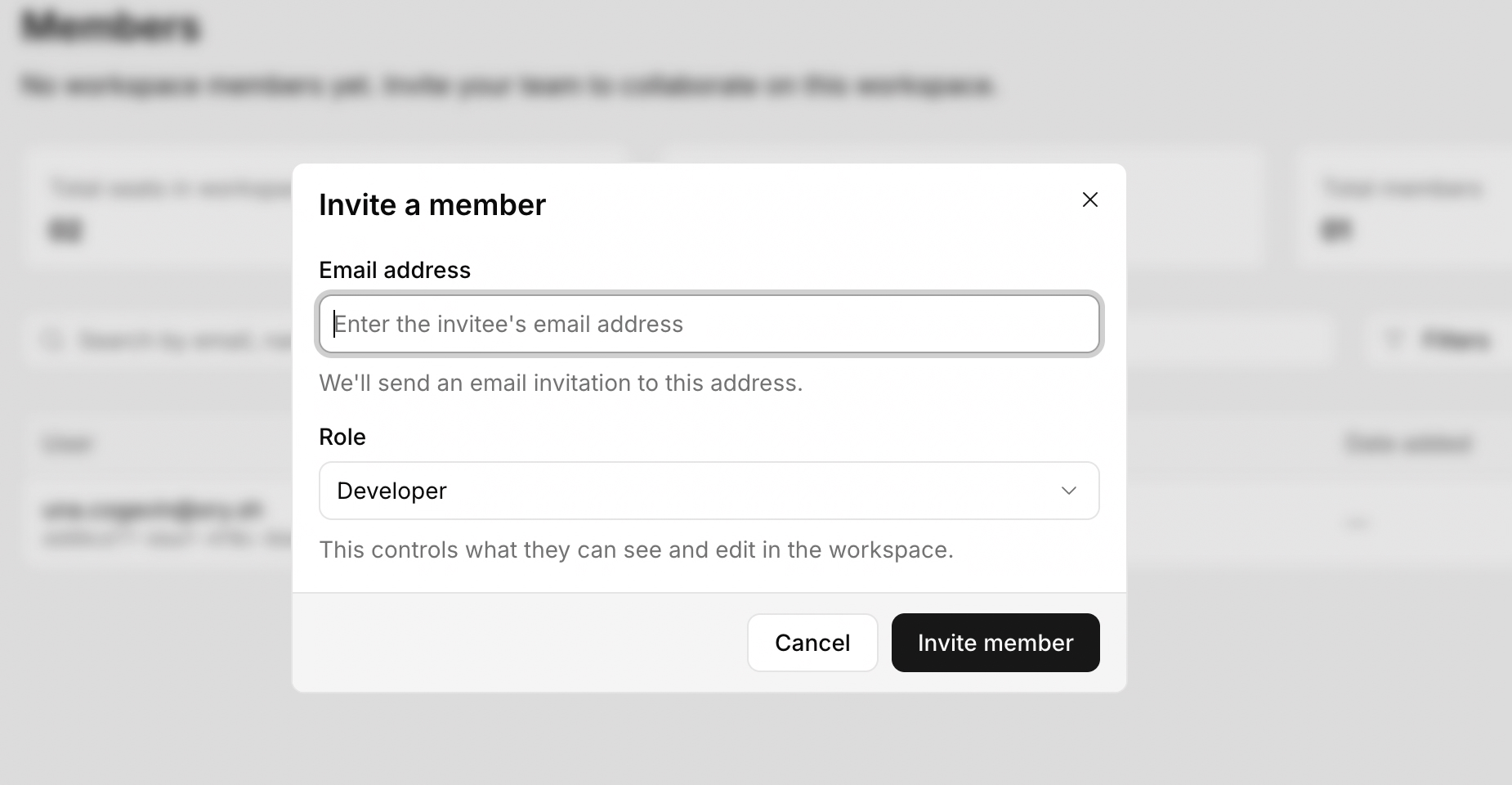
-
-
Adjusting current ownership: If you need to change the role of someone:
- Remove the user from the workspace.
- Re-invite the user to the workspace with the desired new role (e.g., as a member instead of an owner).
Workspaces are designed to streamline collaboration, making it easy to manage team members and their access to projects.
Move a project to another workspace
You can move a project to another workspace from the project settings. The project keeps its environment, data location, and configuration.
- The destination workspace's plan must be the same as the project's current plan or higher. Plans rank from Develop to Production, Growth, and Enterprise. For example, you can move a project from a Production workspace to a Growth workspace, but not from Growth to Production.
- A project in an Enterprise workspace can't be moved. Contact us to move one.
- The destination workspace's plan must have room for another project in the project's environment.
If a move isn't possible, the dialog shows the reason before you confirm.
The project is not part of a workspace (legacy projects)
For legacy projects that were created before the introduction of workspaces, you need to take an extra step to enable ownership transfer.
-
Moving the project to a workspace:
-
First, select the project you want to transfer.
-
Go to the project settings and click on "Move project":

-
Select the workspace to move the project to, and click "Move project", then "Move". The project keeps its data location and configuration. A project with an active subscription becomes a production project in the workspace, and one without becomes a development project. If the destination workspace's plan has no room for another project in that environment, you can't move the project there, and the dialog shows the reason.
-
Change to the workspace you just selected.
-
-
Assigning ownership in the workspace: See the instructions above for projects that are part of a workspace.